Create with invideo AI
Start with a text prompt or photo, choose a video model, and create your first clip.
This image will be the starting frame of your video
Up to 10 images
Reference images guide style and character appearance but won't appear directly in the video
Publicly accessible without signing in.
0 / 20000
Generate synchronized AI audio with the video.
Seed unlocked - will use random seed
Find Inspiration for Your Next Video
Explore playful character animation and bold fashion visuals, then take your own idea in a new direction.
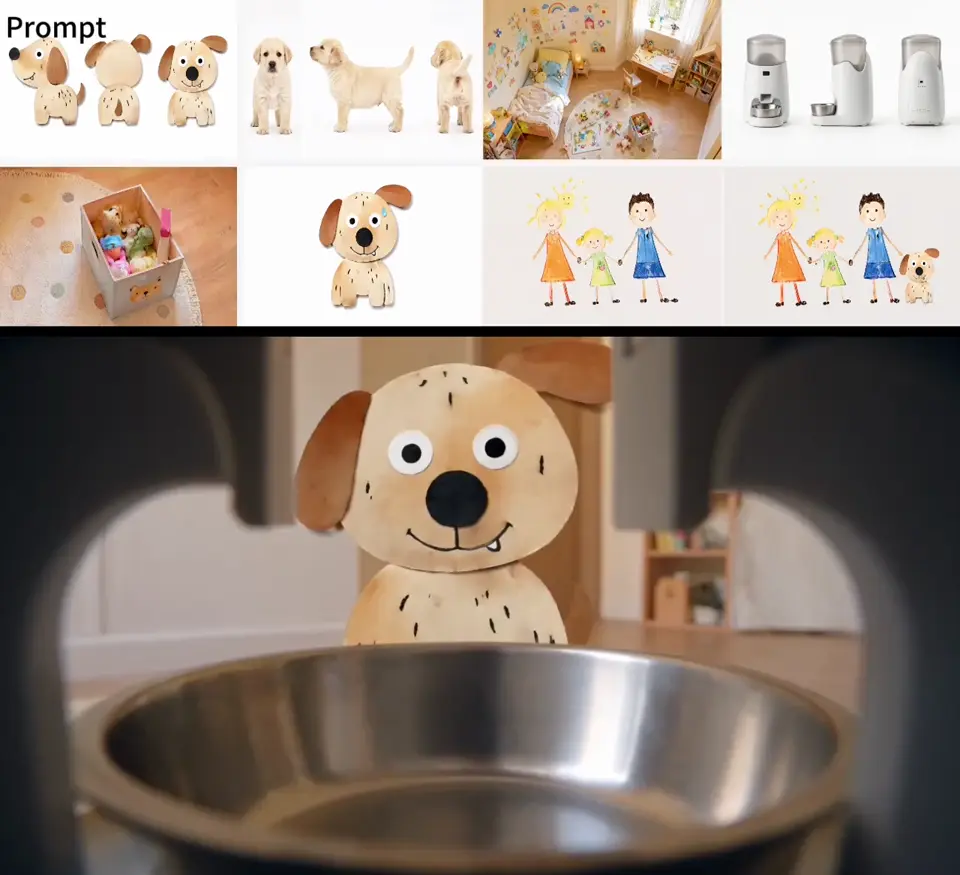
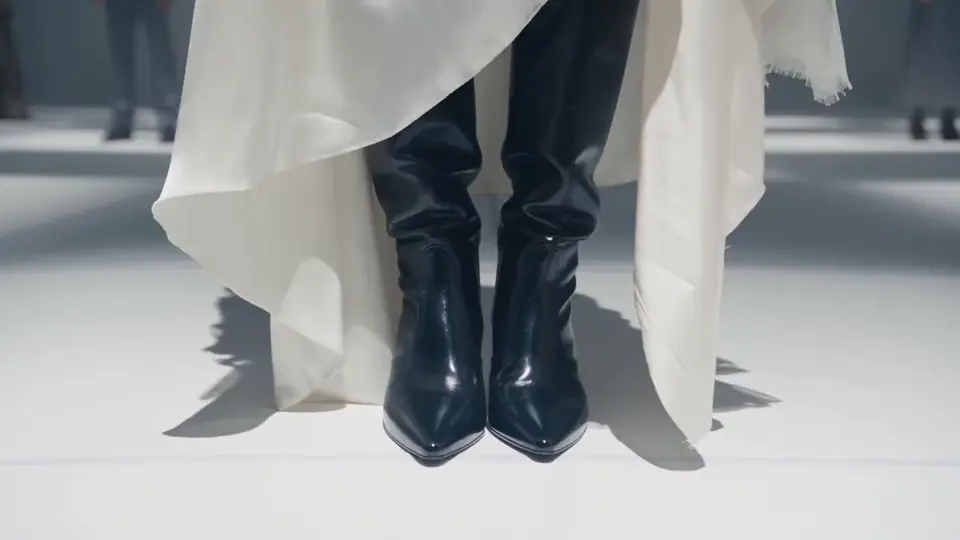
What Is invideo AI?
The invideo AI video generator turns text prompts and still images into video. Built for creators, marketers, and storytellers, it helps you create product clips, character animations, and visuals for social media.
Start with text when you want to build a scene from an idea. Start with an image when you already have a character, product, or composition in mind. Choose a video model and describe the action, camera movement, and mood you want to explore.
Build the rest of your project with tools for AI images, motion control, talking avatars, and text to speech. Create a character image to animate, guide its performance with a reference video, or generate a voiceover from your script.
Create the Video. Shape the Visuals.
Create a video from an idea, or design the image that sets its look.
AI Video Generator
Create a dramatic product reveal, animate an illustrated character, or turn a photo into a moving scene. Explore text to video and image to video with invideo AI, using models such as Veo, Kling, Seedance, and Wan to develop the shot you have in mind.
Create VideoAI Image Generator
Create character portraits, product imagery, and backgrounds from text or reference images. Explore different styles and compositions, then download your image or use it as the starting point for a video.
Create ImageMore Ways to Bring Your Ideas to Life
Create more with invideo AI, from character performances to narrated stories.
Explore Your Cinematic Style
Try different video models to explore the same scene. Shape the mood with lighting and camera direction, from a slow reveal to an energetic action shot.
Create a Look That’s Yours
Use reference images to guide a character’s appearance, a product’s presentation, or a scene’s style. Explore new settings and compositions around the visual idea you want to develop.
Give Characters a Performance
Bring energy and personality to a character with AI motion control. Use a reference video to guide a dance, gesture, or expressive performance.
Put a Face to Your Message
Turn a portrait into a talking avatar for an introduction, explanation, or personal message. Add a script or recording and let the image do the talking.
Find the Voice for Your Story
Give a product walkthrough a clear narrator or a fictional character a distinctive voice. Turn your script into speech and download the audio for your video project.
How to Make a Video with invideo AI
Go from your starting idea to a clip you can preview and download.
Start with Words or an Image
Choose Text to Video to build a scene from words, or Image to Video to animate a photo. Describe your subject and what you want to happen.
Choose Your Model and Settings
Select a video model and choose the available format and duration. Add camera direction to your prompt to guide how the scene unfolds, then generate your clip.
Preview and Download
Watch the result and download the clip you want to use. To explore another direction, adjust your prompt and generate a new version.
Your Questions About invideo AI
Learn what you can create and how to get started.
Use invideo AI to create videos from text or photos, including product clips, animated characters, and social media visuals. The online workspace also includes tools for image generation, motion control, talking avatars, and voiceovers.
Yes, you can try invideo AI for free. Create an account and start exploring video creation with your own idea or photo. Try invideoAI with a simple scene to get started.
Choose Text to Video and describe your subject, setting, and action. Add camera movement if you have a particular shot in mind, then select a model and generate your clip. You can preview and download the result without supplying a starting image. For your first in video AI prompt, focus on one subject and one clear action.
Yes. Choose Image to Video, upload your photo, and describe how the subject or camera should move. Your image provides the visual starting point, while your prompt directs the action. Try it with a product photo, character portrait, or illustrated scene.
invideo AI offers video models such as Veo, Kling, Seedance, and Wan. Choose a model that supports your starting input and the format you need. The available duration, aspect ratio, and audio options appear in the generator when you select a model.
Yes. Video models with native audio support can create sound together with the visuals. Choose an audio-capable model and describe the sounds you want in your scene. To create a separate voiceover from a script, use Text to Speech.
Yes. Use invideo AI to create clips for social videos, from animated product shots to character scenes. Choose a model with a vertical 9:16 option for portrait formats, then download your clip to use in your next Short, Reel, or TikTok video.
Open AI Avatar, upload a portrait, and enter the words you want it to say or upload an audio recording. Add a short visual prompt to describe the speaker’s expression or pose, then generate the talking video. Use it for a character introduction, presentation, or spoken message, with lip movements matched to the speech.
Yes. Use Motion Control with a character image and a reference video that shows the performance you want. The reference guides the movement, making this a useful option for dance clips, gestures, and character performances.
Yes. Open Text to Speech, enter your script, choose a voice, and generate the narration. Download the audio to use in your video project, whether you are making a product introduction, a story, or a social clip.
Your Next Video Starts with an Idea
Give it a scene, a character, and a little imagination. Create something new with invideo AI.